Showing posts with label tips and tricks. Show all posts

Wednesday, April 9, 2014

Do you enjoy shortcuts?

Did you know that when you are looking at your Google Calendar either for your classroom, checking out a computer cart, your personal calendar, etc. you can use some Google Calendar shortcuts to navigate around?   This was a new quick tip I learned today!

Check out the shortcuts below and try them the next time you are in your Google Calendar!


If these don't work for some reason, check your Google Calendar Settings to make sure you have the keyboard shortcuts enabled.   Mine were without a problem, but just in case, here's what you're looking for.


I'm always happy to help!  I hope you enjoyed this quick tip!

Friday, November 1, 2013

What happen to the black bar on top of my google?

You may have noticed today that the black navigation bar that normally is at the top of your gmail, docs, etc. has gone away.   Don't worry - there's still a quick and easy shortcut way for you to navigate around Google.  You will notice a little grid icon in the upper right hand corner of your screen.  If you click on it, you will have a variety of apps to choose from, like mail, drive, calendar, sites, etc.   To watch a 30 second video on how the new navigation panel works, click below.  If you have any questions - feel free to ask.   I hope you enjoy the new layout - I know that it may take some getting used to - but hopefully in a month you'll forget all about the black bar!!!  If you are feeling adventurous you'd like to customize how apps appear in your new control panel, click here to install the app launcher customizer and follow the directions it gives you.


Tuesday, October 8, 2013

Reading Rewards


Are you looking for a more engaging way to hold your students accountable for their reading at home or at school?   I learned about a site called Reading Rewards at the conference I was at last Friday.   The best thing about this is free website has a lot to off teachers, parents, and librarians.  As a group administrator, you will be able to create and manage reading groups, set up reading incentives for your readers, and even log reading time yourself.

Creating a free account is quick and easy.  Once you create your account, your next step is to create a group for your classroom, and add your students as members.  Once you do that you'll be easily able to track students' reading progress, sharing reading lists, and even set up some customized reading rewards for them.  Talk about a great reading incentive!

Do you want more information specifically for teachers?  Click here for their teacher page or just ask me for help!

Sunday, September 29, 2013

Google Like a Boss

This weekend, I spent some time on Pinterest.  In addition to some yummy recipes, I came across this helpful "Google Like a Boss" post, which seems like it would be very helpful for both teachers and students.   Enjoy!


Wednesday, September 11, 2013

We Give Books

I'm all about a good, free resource.   Especially one that will help others by using it.

Today, a friend of mine shared with me the site We Give Books.  This site allows you to read books on your computer or SMART Board from their extensive library!   They are broken into various age categories.  There are books for various age groups - starting at babies all the way until age ten. The books include a mix of fiction and nonfiction, a range of authors, and an equal balance between read alouds and books for independent readers.    The We Give Books team is committed to adding books every month, together with seasonal offerings.  This digital initiative enables anyone with access to the internet to put books in the hands of children who don't have them, simply by reading online!   The more books you and your class read from We Give Books, the more books they donate to children in need.

To get started, all you need to do is create a free account, then click on read - and scroll through this here.  
surprising large library.   There are also some great educator resources which has activities to go along with the various book - check them out by clicking

After exploring this website today - I could see uses at all elementary grade levels - as well as reading some of these stories to my kids at home!    Some of the "editors picks" books even work on the iPad - no app required.   The library isn't as large, but using the Safari Internet App that is on all iPads, you can log into your account and read books on there as well.    I hope you find this to be an awesome resource - as I think it's truly a fabulous find.


Special thanks to Barbie Murphy for sharing this awesome site with me!

Monday, May 20, 2013

FREE Resource!


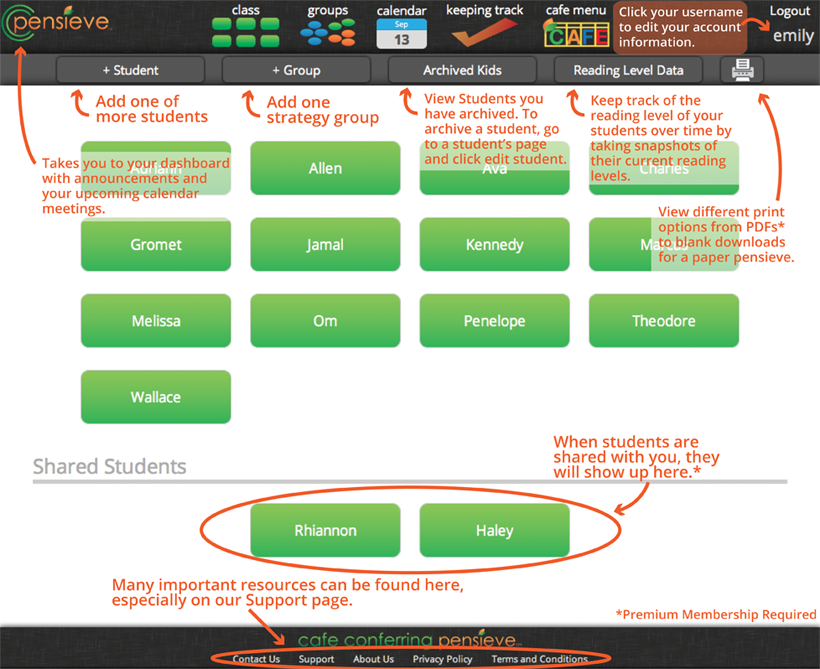
Have you heard of the Two Sister's produce called Cafe Conferring Pensive (CC Pensive)?

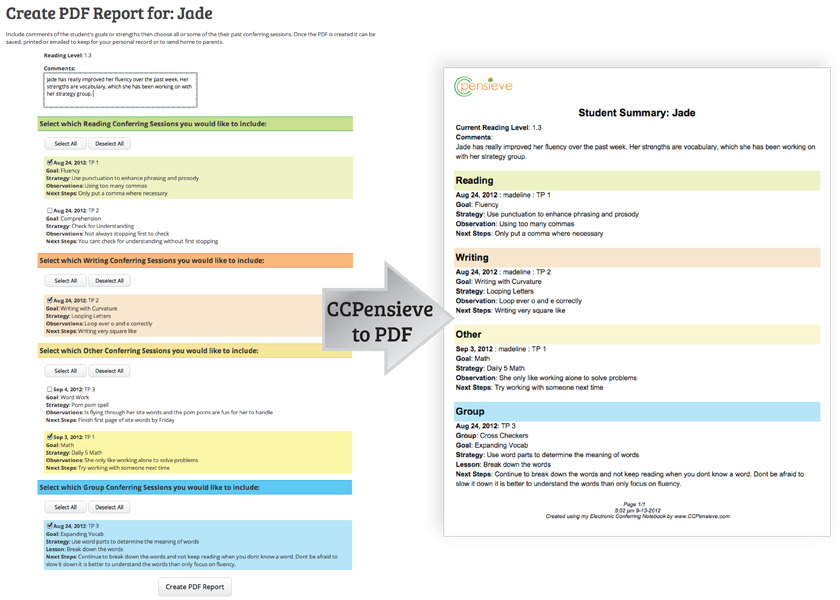
The CCPensieve is the only online conferring notebook created and endorsed by The 2 Sisters, the creators of the Daily 5 and CAFE. Beyond the popular features explained on the features page, the CCPensieve is fully integrated with The CAFE Menu's reading goals and strategies. Students can be shared between other CCPensieve members for ultimate Curricular Coherence.

While using the CCPensieve, you will realize how quickly you can enter information into the system. Once information is stored, you will be amazed how the information is displayed in many different ways making your conferring sessions more powerful, which helps to influence student success.


Does this sound like something you may want to try out in your classroom this year to see if it may work for you next year?   I think it has a place in every reading classroom!   Right now they are offering a free 30 day trial for their premium membership.   Check it out by clicking here.    


Thanks to our ELA Curriculum Specialist, Meghan Keefer, for alerting me of this awesome deal!

Tuesday, May 14, 2013

Minute Trick from Kara P - ITC at Emerson


Today I'm sharing a trick from Kara Pottinger, the ITC over at Emerson.   I love a good shortcut, and this one I had no idea!  Thanks for sharing, Kara!

COMMAND* + F
For today's Minute Trick, I am pulling out my favorite hidden keyboard shortcut.  We all know command+x for cut, command+c for copy, and command+v(Think Velcro) for paste, but do you know command+F?

This keyboard shortcut can be used on any document, website, or window to search for text.  
First, a generic search bar will appear in the top right corner of the window.  As a you type, the matching text is highlighted.  It even gives a count of how many times your query appears in the window. You can use the up and down arrow to find the different places you appear.

This comes in handy whenever you are looking for a needle in an electronic haystack?  For example, looking for a specific name in a spreadsheet (a student score in building map score spreadsheets?) or a specific piece of information in an website article.  If you are writing the same email to different students' parents with the same information but have to use pronouns, you can copy the email text into a new email then find all of the "he"s and turn them into "she"s.

In my classroom, I had students use this shortcut when writing dialogue to find the very overused word "said" and replace it with more descriptive words.  You can also have them find all of the times they used pronouns or this/that to help improve their clarity.

Go ahead and try it right now.  Hold down the command and f at the same time.  When the search bar appears in the top right corner, type "command".  Do you see the highlighting?  Can you move through all the different places it is used?  BONUS:How many times do I use the word command?

*Remember, that the command button is the open apple button on older laptops.

Answer: 9 times, the word command was used.  Oops, now it is 10.

Monday, May 13, 2013

Teach Parents Tech

Have you seen the website, teachparentstech.org?  It's a pretty great website, run by Google, where you can send "tech support" to a parent... or to yourself!   There are some basic categories that have simple video tutorials to do different tech things such as:

  • The Basics
  • World Wide Web
  • Communication
  • Media
  • Finding Information
This is a great resource for you as well, just in case your friendly Building Technologist or Instructional Technology Coach is not around.  Be sure to check it out... or send a "care package" to your loved one!


If you are curious about all of the videos that are offered through this free website, click here

Monday, April 29, 2013

Gmail Shortcuts Cheat Sheet

Have you see this cheat sheet for GMail shortcuts?  There are a bunch on here I didn't know about, so I had to share!

Gmail-Cheat-Sheet


Here is Google's version, however, I think you'll find VISUALEKS is a little nicer to look at!

Tuesday, April 23, 2013

Voice Comments On Google Docs

Wouldn't it be great if you could leave your students feed back on their Google Docs - but not have to write it?   They could listen to your suggestions while you read their essays that they read with you?  You could highlight while talking about suggestions and comments.  That is now possible!   Today I watched a cool screencast about using an app for Crome called, Voice Comments.  Simply highlight and speak - the Voice Comments app for Google Drive is the fastest way to give high quality feedback on a document.

Here is a great tutorial made by a teacher who uses Voice Comments with her students.


There is also a great step by step on getting stated once you install the app into your chrome browser.   You must be using chrome for this feature to work.   Currently, the Voice Comments feature only works with Google Docs, not presentations or spreadsheets.  Hopefully we'll see that in the future!

Does this sound like something that could be helpful for you and your students?   Let me know and I can walk through how to set this up for you and your students.   

Saturday, April 20, 2013

New Socrative Features

So, I do realize that sometimes I can be a total dork, however, in my inbox this morning was an email from Socrative saying that they had added some new features... and I got excited.

Socrative is a smart student response system that empowers teachers to engage their classrooms through a series of educational exercises and games via smartphones, laptops, and tablets.  We've used it in a variety of presentations this year as well as I know many teachers are fans.   The two new updates are:

  • Self Grading Quizzes
  • Adding Images into Questions

For me, I'm most excited about the adding images into questions, as that's something that I've struggled with using both Socrative and Google Forms.

Richard Byrne, who writes the blog, Free Tech for Teachers, created a great video explaining these new features.   Check it out below!

Thursday, April 11, 2013

Another GMail Compose Tip

Did you know you can insert images inline in your email, rather than just attaching them?  Simply choose your preferred method: copy and paste, drag-and-drop, or just click the photo button to add an image directly into your draft.


GMail Compose Tip

Try holding down the shift key while clicking compose - it opens a brand new compose window in the center of your screen, perfect for those who like a little extra space!


Happy Birthday to Gmail... did you know Gmail is celebrating it's 9th birthday?  Check out the evolution of Gmail!


Saturday, April 6, 2013

GMail Compose Tip

Attachments be gone! You can insert files up to 5 GB in size directly using Google Drive.  And because your document is stored in the cloud, everyone you share it with will have the most recent version all the time.  Gmail will also remind you to change your sharing settings if you email a link to a Google document that isn’t shared with the recipients of the message.  


Friday, April 5, 2013

GMail Compose Tip


Here’s a time-saver: you can drag-and-drop the address chips in the compose and replies in your GMail.  So if you accidentally cc someone you meant to bcc, or want to move someone to cc from the to category,  you can just drag-and-drop - no retyping needed!

Have a great weekend!

Wednesday, March 20, 2013

Important Tip of the Week

Don't forget to back up your computer in a regular basis! That includes files, pictures, videos, music, etc. I know we've all heard this- but you don't want to learn the hard way! Happy Spring Break!!!

Monday, March 18, 2013

Google Maps?

Do you have upcoming travel plans for spring break?   Do you wish you were going to some place really cool and exotic?   Now you can explore some of the highest peaks in the world on Google Maps, with Street View of Aconcagua, Kilimanjaro, Mount Elbrus and Everest Base Camp.

To learn more about these new exciting features, and see some of these awesome places in action, click here.  I know a good 5th grade friend may be checking out the beaches in Hawaii...  Who wouldn't be?


And just because I'm excited for my spring break, I explored my destination with Google Maps below.  

Great beach view.

I dragged the little yellow man to get a beach view.

The A is where we are staying.

Enjoy using Google Maps in your classroom!  If you need ideas of how to implement it, let me know!  I'm happy to help!

Saturday, March 9, 2013

Gmail Themes?


Are you tired of looking at he boring background of your Gmail?  Did you know that you can change it?   By clicking on the gear shift and clicking on themes, you'll be taken to gallery of many different themes that you can have in your gmail.  

Then choose a theme for you to have in the background of your email.  If you notice, I picked beach, as I'm ready to be sitting on the beach on spring break.   


Did you know that certain Gmail themes change with the weather, time of day, or day of the week? You can tell which themes change by going to Settings > Themes and looking for an icon in the lower right hand corner of the theme's thumbnail image. Select the thumbnail and enter your location to see the theme change in accordance with your surroundings. Try it out!


Speaking of beach... here's where I'm headed for Spring Break!   Marco Island, FL


Wednesday, February 27, 2013

End Your Email Overload

Yesterday, I read about a new service called "Unroll.me".

Unroll.me is a free and easy way to end unwanted e-mail subscriptions and rollup the rest into an organized overview made just for you if you are using gmail or 

Unroll.me makes managing your subscription list easy. Simply select the emails that are overloading your inbox, and we'll automatically unsubscribe you all at once.

If you change your mind, there's always time to reselect a subscription. Plus your privacy is our top priority. We don't even peek at your personal emails (promise).

It's the cleanest, leanest in-box format we've ever seenest. And we mean it. At a glance, our Rollup offers a daily summary of your subscriptions.

Our inbox rollup is so intuitive that it even organizes and prioritizes each email and automatically puts it into its own individual Rollup category as it comes in (crazy cool, huh?). This keeps your individual rollups streamlined and clean.

I installed Unroll.me both on my work and personal email last night and this morning I woke up to a cleaner inbox!  I was shocked!   All of my emails from different stores and companies were compacted into one e-mail that I can read either in the morning, midday, or evening (your choice).   I also now have a folder in my emails that has all of the emails, just in case I can't wait to read the digest when it comes.  I'm going to be honest, I checked the folder to see if I really did get the emails.    I noticed more of a difference in my personal email as I didn't have all of the coupons and such bugging me first thing when I looked in my email.   I also didn't realize how many email subscriptions I had!   I was able to unsubscribe from many of the ones I never read or didn't want any with a click of a button.


Let me know if you want help trying it!   If you have a lot of email subscriptions, this is something I would seriously take the time to look at.   Starting using it took minutes and is so worth it!